How to Become a Gimkit Host and Start a Live Game
Setting up a classroom game can feel complicated when you have never used the platform before. A gimkit host can turn a normal review session into an interactive game where students answer questions, compete, and learn together. The good news is that hosting does not require complicated technical skills. You mainly need a Gimkit account, a kit, a game mode, and a way to share the game code with your students.
What Is a Gimkit Host?
A gimkit host is the person who creates and controls a live Gimkit game. In a classroom, this is usually the teacher or educator.
The host chooses the kit, selects the game mode, adjusts available settings, opens the lobby, lets students join, and starts the game. During the session, the host can also monitor players and use available controls to manage the game.
Think of the host as the person running the game while students participate as players.
What Can a Host Do?
A host can generally:
- Choose a question kit
- Select a live game mode
- Adjust game settings
- Share a game code
- Display a QR code
- Share a direct join link
- Allow or prevent late joining
- Use the nickname generator when available
- Monitor players
- Remove players when necessary
- Display the leaderboard
- Control game sound
- End a game early
- Review game results after the session
The exact controls depend on the game mode you select.
How Do You Become a Gimkit Host?
Becoming a gimkit host starts with creating an educator account. Gimkit provides free accounts, and educator accounts can host games using the available free features. New educator accounts also receive a 14-day Gimkit Pro trial according to the official Help Center.
Basic Requirements
| Requirement | What You Need |
| Account | Gimkit educator account |
| Content | A kit with questions |
| Game | A supported live game mode |
| Students | Devices with internet access |
| Joining | Game code, QR code, or join link |
| Host device | Computer or another suitable device |
| Internet | Stable connection recommended |
Students do not necessarily need their own Gimkit accounts to participate in live games. Gimkit states that students can join live games without logging in.
How to Create a Kit Before Hosting
Before becoming a gimkit host, you need content for students to play. Gimkit calls its question sets Kits.
You can create a kit from your dashboard by selecting New Kit. You can then add a name, language, subject, cover image, questions, correct answers, and incorrect answers.
A Simple Kit Creation Process
- Open your Gimkit dashboard.
- Select New Kit.
- Add a suitable title.
- Choose the language and subject.
- Add your questions.
- Mark the correct answers.
- Add incorrect answer choices.
- Add media when appropriate.
- Finish and save your kit.
A focused kit works better than adding random questions. For example, a science teacher could create a kit containing only questions about the solar system.
How Do You Host a Live Gimkit Game?
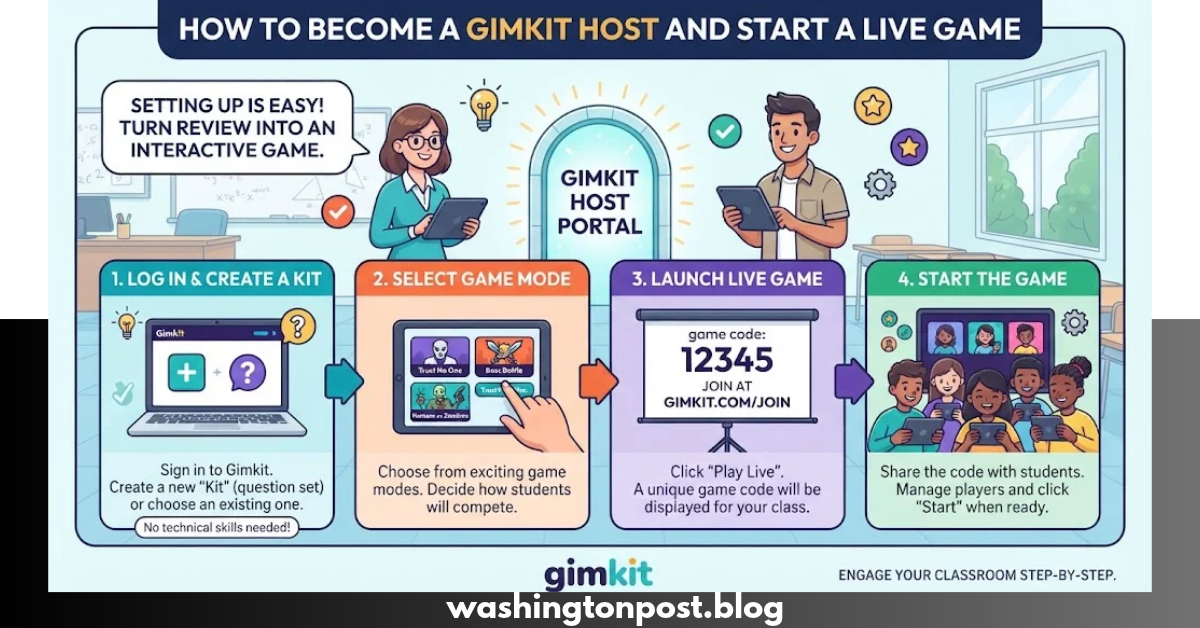
Once your kit is ready, hosting is straightforward. The official process is based on five main steps: select a kit, choose a game mode, configure the game, share the joining information, and start the game.
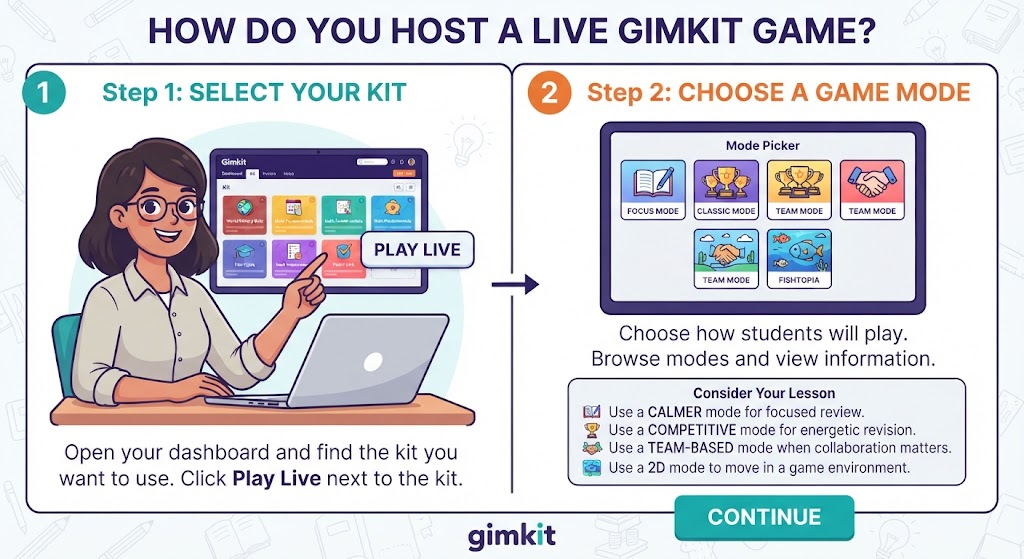
Step 1: Select Your Kit
Open your dashboard and find the kit you want to use.
Click Play Live next to the kit. You can also open the kit and choose the live-play option from there.
This takes you to the Mode Picker, where you can choose how students will play.
Step 2: Choose a Game Mode
The game mode determines how students interact with your questions.
Gimkit offers different modes designed for different classroom experiences. The official Mode Picker lets hosts browse available modes and view information about how each one works.
Consider your lesson before choosing a mode.
For example:
- Use a calmer mode when students need focused review.
- Use a competitive mode for an energetic revision session.
- Use a team-based mode when collaboration matters.
- Use a 2D mode when you want students to move around a game environment.
After selecting your preferred mode, click Continue.
What Are Gimkit Game Options?
Game options let a gimkit host adjust the experience before students enter the actual game.
Depending on the mode, you may see settings related to:
- Game goals
- Time limits
- Classes
- Late joining
- Nickname Generator
- Mode-specific rules
- Gameplay balance
Gimkit explains that standard options can include goals, class connections, late joining, and the Nickname Generator, while individual modes may provide additional settings.
Why Should You Check These Settings?
The right settings can prevent problems during a classroom session.
For example, if you do not want students joining after the game begins, check the Join in Late option before starting. Gimkit says live games allow late joining by default, although hosts can change this setting.
How Do Students Join a Gimkit Host Game?
After you finish the settings, Gimkit opens a lobby where students can gather.
A gimkit host can give students three convenient ways to join:
- Game code
- QR code
- Direct join link
Students without Classes can visit Gimkit.com/join and enter the game code shown on the host’s screen.
Joining With a Game Code
The game code is usually the easiest option when a teacher is presenting the game to a classroom.
Tell students to:
- Open the Gimkit join page.
- Enter the displayed game code.
- Enter their name if requested.
- Wait in the lobby.
- Start playing when the host begins the game.
Joining With a QR Code
A QR code can save time when students are using phones or tablets.
While hosting, hover over the game code to display the QR code. Students can scan it with their device and join the game. Gimkit also provides a direct join-link option beside the QR code.
Can a Gimkit Host Join the Game?
Yes. In 2D game modes, the host can choose whether to participate as a player or watch as a spectator.
The option appears in the lobby, allowing the host to switch between the available roles.
This gives teachers flexibility.
If you want to focus on classroom management, spectating may be more useful. If you want to experience the game with your students, joining as a player can make the activity more interactive.
How Does a Gimkit Host Manage Players?
Player management is an important part of running a smooth live session.
In the lobby, the host can review who has joined. During supported games, host controls can also provide access to player information and management options.
For 2D games, the host can view players, spectate them, and remove players when needed.
When Should You Remove a Player?
You may need to remove someone if:
- They joined the wrong game.
- They entered an inappropriate name.
- They are disrupting the session.
- Someone outside the intended class entered the game.
Removing a player is a management tool, not something that should be used without a reason.
What Does the Gimkit Host Control During a Game?
Once the game starts, the host has access to controls that depend on the selected mode.
For 2D games, standard controls can include:
| Host Control | Purpose |
| Game Code | Shows the code students use to join |
| Players | View and manage participants |
| Leaderboard | Display current standings |
| Sound | Adjust game music and effects |
| Spectating | Watch individual players |
| Timer | Monitor remaining time |
| End Game | Finish the game early |
Gimkit’s official documentation explains that 2D hosts can use these controls while a live game is running.
Can You Add More Time During a Gimkit Game?
For supported 2D modes, the host can add time during a live game.
Gimkit explains that clicking the game timer can add one minute at a time. The available time limit depends on the game’s rules and the current timer.
This can help when students are still actively learning and you want to give them additional time.
However, adding time should support the lesson rather than simply making the game longer.
How Should You Choose the Best Gimkit Mode?
There is no single best mode for every classroom.
The right choice depends on your learning goal, student age, class size, and the amount of time available.
Quick Game-Mode Decision Guide
| Classroom Goal | What to Look For |
| Quick review | Simple, fast gameplay |
| Teamwork | Collaborative or team-focused mode |
| Competition | Competitive scoring |
| Strategy | Strategic gameplay |
| Movement | 2D game environment |
| Calm revision | Less intense gameplay |
| Short lesson | Simple rules and short goals |
Gimkit’s Mode Picker includes labels and descriptions to help hosts decide which mode fits their class.
How Many Students Can Join a Gimkit Game?
Gimkit’s official Hosting documentation states that its hard limit for students in a live game is 500 students. Actual performance can still depend on the devices and internet connections being used.
For a normal classroom, the more important issue is not simply the maximum number. A host should make sure students have reliable devices and a stable connection before starting.
For larger groups, test the setup before the lesson whenever possible.
How Can a Gimkit Host Prevent Common Problems?
A few simple checks can make hosting much easier.
1. Test Your Kit
Open the kit before class and check every question.
Look for:
- Incorrect answer keys
- Spelling mistakes
- Confusing questions
- Duplicate questions
- Missing information
2. Test the Game Mode
Do not choose a mode for the first time five minutes before class.
Review how it works and understand the main objective.
3. Keep the Game Code Visible
Students who arrive late may need the code. Keeping the host screen visible makes joining easier.
4. Check Late Joining
If you want a controlled start, review the late-joining setting before beginning.
5. Use the QR Code
A QR code can reduce the time students spend typing a game code.
6. Keep Backup Instructions Ready
Tell students what to do if they disconnect.
A simple instruction such as “return to the join page and enter the same game code” can prevent unnecessary confusion.
Gimkit Host vs. Gimkit Player
The host and player have different responsibilities.
| Feature | Host | Player |
| Select kit | Yes | No |
| Select game mode | Yes | No |
| Set game options | Yes | No |
| Share game code | Yes | No |
| Join live game | Optional in supported modes | Yes |
| Answer questions | Depending on role | Yes |
| Monitor players | Yes | No |
| Manage players | Yes | No |
| End game | Yes | No |
| View host controls | Yes | No |
The key difference is control. The gimkit host manages the session, while players participate in it.
Is Gimkit Free for Hosts?
Gimkit provides a free Basic option for educator accounts.
According to the official Account FAQ, educators can continue using Gimkit Basic after the Pro trial ends. Gimkit also states that Basic accounts can host games, create classes, and collect game reports.
Some additional features are reserved for Gimkit Pro, so the exact tools available can depend on your account type and the feature you want to use.
How Does a Gimkit Host End a Game?
A host can normally allow the game to finish naturally according to its selected goal.
In supported modes, the host can also end the game early through the host controls. Gimkit documents an End Game control for ending live games before their normal endpoint.
Ending early can be useful when:
- The lesson is running out of time.
- Students have reached the learning goal.
- A technical issue affects the session.
- You need to move to the next classroom activity.
What Happens After a Gimkit Game Ends?
After hosting a kit you own, Gimkit can provide game reports containing class and individual data.
The official Hosting documentation states that reports can be viewed after a game and saved as a PDF.
This makes the activity more useful than a simple classroom competition.
You can use the results to identify:
- Questions students found difficult
- Students who may need additional practice
- Topics that need another explanation
- Overall class performance
The strongest use of a game is not simply finding a winner. It is using the results to improve the next lesson.
Best Practices for a Successful Gimkit Host
A good host focuses on both learning and gameplay.
Keep Questions Relevant
Use questions that directly support your lesson objectives.
Avoid Overloading the Game
Too many complicated rules can distract students from the subject.
Explain the Goal First
Before starting, tell students what they need to do and how the game works.
Monitor the Lobby
Check the names of participants before starting.
Use the Leaderboard Carefully
Competition can be motivating, but the leaderboard should not become the entire focus of the lesson.
Review the Results
Use the final report or classroom observations to decide what students should practice next.
Gimkit Host Troubleshooting Guide
| Problem | Possible Solution |
| Student cannot join | Check the game code and join page |
| Student entered the wrong game | Remove them and provide the correct code |
| Too many students join late | Review the late-joining setting |
| Students do not know where to go | Display the QR code or join link |
| Host cannot find a mode | Open the Mode Picker and review available modes |
| Game becomes difficult to manage | Use player controls and simpler settings |
| Students need more time | Use the timer controls when supported |
| Game needs to stop early | Use the End Game control |
For persistent technical problems, the official Gimkit Help Center is the best place to check current troubleshooting information because features and game modes can change.
Frequently Asked Questions
What is a Gimkit host?
A gimkit host is the person who creates and controls a live Gimkit game. The host selects the kit and game mode, manages settings, shares the joining information, and starts the session.
Do students need a Gimkit account to play?
No. Gimkit says students can join live games without creating or using an account. They can use the game code or other joining options provided by the host.
How do students join a Gimkit host game?
Students can visit Gimkit’s join page and enter the game code shown by the host. Depending on the setup, they can also use a QR code or direct join link.
Can a host play in the same Gimkit game?
Yes. In 2D modes, hosts can choose to participate as a player or act as a spectator. The available role options depend on the game mode.
Can a host remove students from a Gimkit game?
Yes. Gimkit provides player-management controls that can allow hosts to remove participants during supported live games.
Is Gimkit free for teachers?
Gimkit offers a free Basic educator account. The official documentation says educators can continue using the Basic version, while Pro provides additional features. New educator accounts also receive a 14-day Pro trial.
Conclusion:
Becoming a gimkit host is easier when you follow a clear process: create or choose a kit, select a suitable game mode, check the settings, share the game code or QR code, and start when everyone is ready. The host controls give teachers useful ways to manage the session without taking attention away from learning.
The best results come from treating Gimkit as a teaching tool rather than only a competition. Choose questions that match your lesson, keep the rules simple, watch how students respond, and use the results to plan your next review session.